
Step 1:
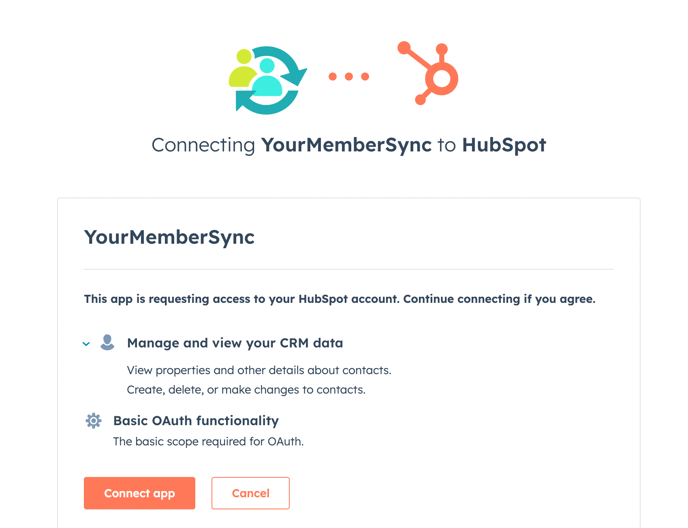
Connect the app. The app will ask your permission to connect with the HubSpot account. Follow the prompts here:
Step 2:
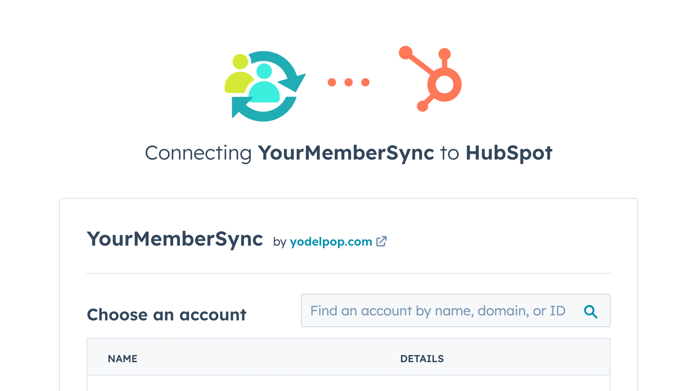
Choose the HubSpot portal that you wan to make the connection with:
Step 3:
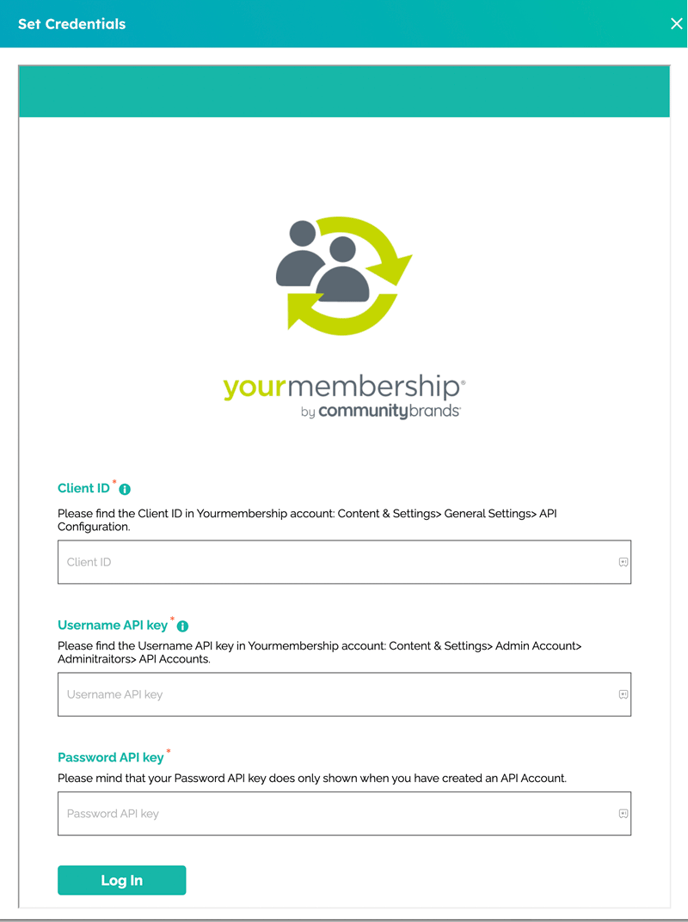
Once you begin installing the app there will be a form to fill in with credentials from your YourMembership account.
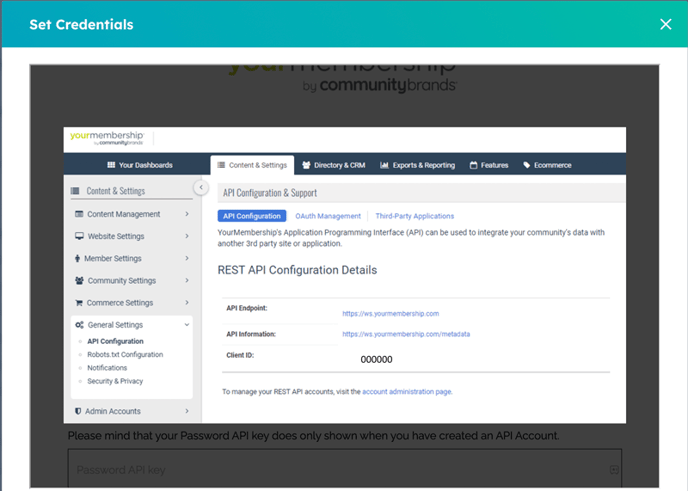
Tap on the info tool to see where you can get the credentials from YM:
That's it! 🎉
At 4:00 am UTC the integration will execute migrating the members from the YourMembership account to the HubSpot account
If you need help, please reach out to us at info@yodelpop.com for support.
Guide to using your new integration:
- If you are subscribed to 'Marketing Contacts" and you want the contacts coming in from the integration to be marked as such, you need to toggle this setting.
- Go to Settings > Integrations > Marketing contacts and set the toggle next to YourMemberSync to 'on'.
- You can see more information on this from HubSpot here.
- Set up your HubSpot portal to use the integration data:
- Identify and make a list of ALL items (forms, workflows, etc.) are affected by the data coming from YourMemberSync
- Create a property group called YourMemberSync
- Move the YourMemberSync properties to the new group
- Create a smart contact list called "Through YourMemberSync"
- Filter the list for "Through YourMemberSync" = True
- Customize your view of the list so you can see only columns for YMS fields
- Use this list ongoing to see the integration in action and to cross-reference with other lists as necessary
- For each item on your list, either:
- Change the items to use YourMemberSync Fields
-
-
- Set up workflows to populate the HubSpot fields you are using in your items, with data from YourMemberSync Fields
-
At 4:00 am UTC the integration will execute migrating the members from the YourMembership account to the HubSpot account.
YourMemberSync FAQs
Q: What happens if an incoming email from an existing contact with a matching website ID is different from what's already in HubSpot?
A: The primary HubSpot email will remain the same, and the alternate email coming in will go in the integration's field 'Flagged Email'
Q: What if there's an email match for the contact coming in, but the contact's first and last name aren't a match?
A: A new record will be created without the primary email - refer to your duplicate strategy to manage these