
What You’ll Need:
-
If you haven't taken this step yet, you will need to set up your subscription for RaiserSync here.
-
A HubSpot account
- Users must be a super admin and have App Marketplace Access permissions to connect apps to their HubSpot account. In some cases, further permissions are required to connect certain apps.
-
Blackbaud Access Requirements for Raisersync Integration
To ensure uninterrupted and complete syncing between Blackbaud and RaiserSync, it’s essential that the integration is authorized using a Blackbaud user account with the highest possible level of access—ideally, the primary or “root” admin for your Blackbaud environment. The permissions of the user account that connects the app directly determine what data RaiserSync can read or write.
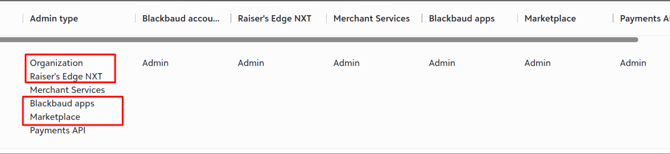
Required User Permissions
- The connecting Blackbaud user must:
- Have the Admin role for all modules relevant to your sync (especially Raiser’s Edge NXT, Blackbaud Apps, and Marketplace).
- Possess unrestricted access to all data and objects you wish to sync (constituents, gifts, lists, custom fields, etc.).
- Be an account whose access will not be downgraded, restricted, or removed (typically, your main organization admin).
Best Practice: Use the Main (Root) Admin Account
- Always use your organization’s main, permanent admin to authorize RaiserSync.
- Avoid using temporary IT, developer, or service accounts—if those accounts are disabled, deleted, or permissions change, sync will fail or become incomplete.
- If your organization requires, set up a dedicated integration/admin user with the exact same permanent permissions as your root admin.
What Happens If Permissions Are Incomplete
If the connecting user does not have full access:
- Partial Syncs: RaiserSync will only sync the records and fields that the user has access to. Some data may come through, but other records will be missing or incomplete.
- Intermittent Errors: You may see errors such as
associateId not found,403 Forbidden, or missing records in logs and the UI. - Sudden Sync Failures: If the connecting user’s access changes after connecting (removed from a group, downgraded permissions, or account disabled), RaiserSync will stop syncing altogether until reconnected by a fully-permissioned user.
- Difficult Troubleshooting: Because some data will appear and some won’t, these problems are often subtle and can be very hard to diagnose without checking user access.
How to Fix Permission Issues
- Verify User Permissions:
- Confirm the Blackbaud user connecting the app has full admin rights everywhere data needs to be accessed.
- Reconnect RaiserSync:
- Log in as the verified main admin user and reconnect the Raisersync app in Blackbaud.
- Notify Support/Integration Team:
- Let your integration team know once reconnected—they can monitor the sync and confirm success.
Install RaiserSync
- Now you are ready to connect the two platforms together through an authentication process
- Upon payment, we will set you up with a RaiserSync Dashboard account. The screenshot below shows a connected account.
- Go to each portal's tab to connect them.
- Follow the login instructions for each platform
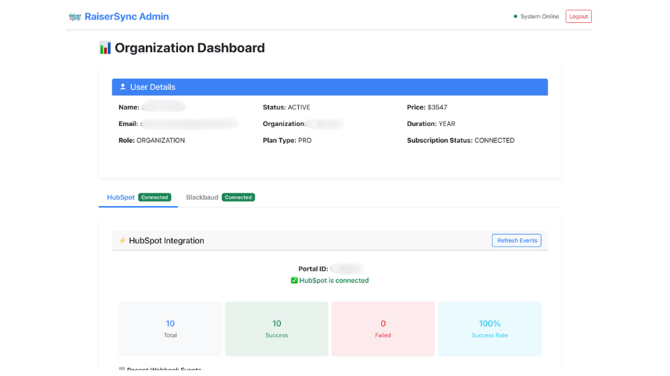
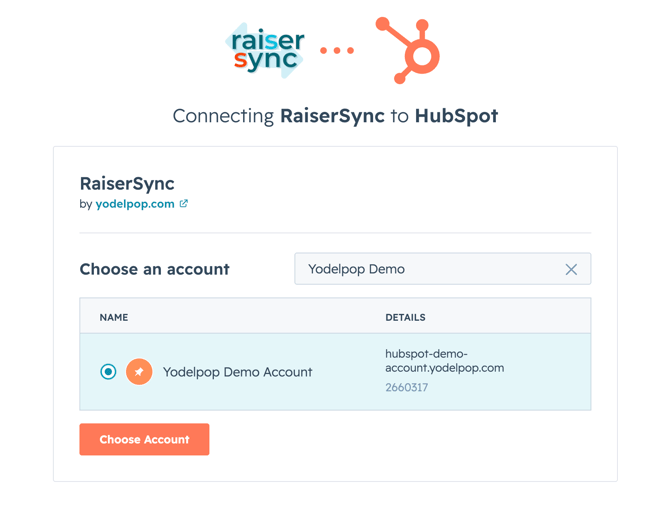
Connect HubSpot:
Please select the specific HubSpot portal with which you would like to establish a connection:
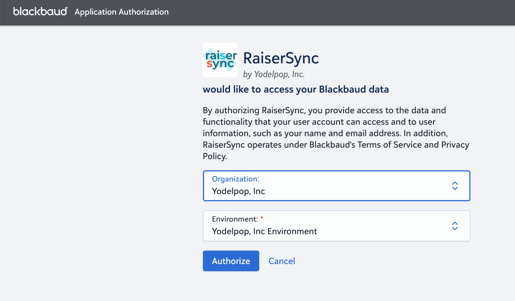
Connecting Blackbaud:
Please proceed with authorizing the connection between Raiser Sync and Blackbaud:
Upon successfully establishing a connection with either HubSpot or Blackbaud, you will be presented with the following screen. Please ensure to save your secret key and proceed to connect the other platform that is currently labeled as "Not Connected.":
Once you have successfully established a connection with the other platform, you will notice that your integration is now active.
In the event that you are using a different device, you can easily retrieve information about your integration by searching for it using the secret key that you had previously saved:
That's it! 🎉
Help and Troubleshooting
If you need help troubleshooting, submit a ticket here.
What’s Next
- To confirm that your app is installed, head to your HubSpot Settings > Account Set Up > Integrations
- Your app is ready to use! You can see the field group by going to HubSpot Settings > Data Management > Properties > Group Tab > RaiserSync Group
- We recommend creating two Segments in HubSpot so that you have an easy way to inspect the data in HubSpot:
- Add a custom Contact Segment that is Active named 'Created by RaiserSync'
- Filters:
- 'Original Traffic Source' = Offline
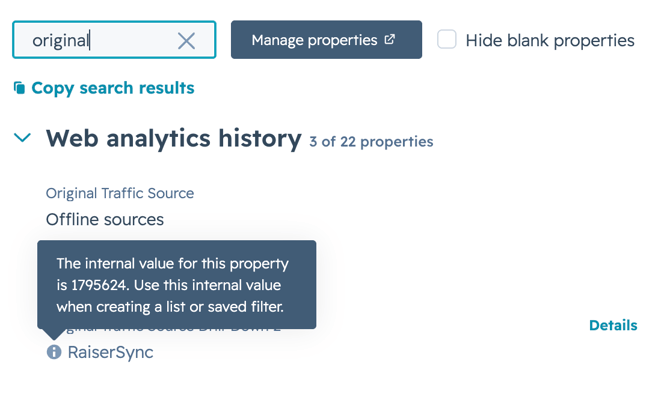
- 'Original Traffic Source Drill-Down 2’ = 1795624
- This is the internal ID of the RaiserSync integration
- (Optional)You can verify this by going to a contact record created by the integration, under actions in the first card on the right side, click Actions and choose 'View all Properties
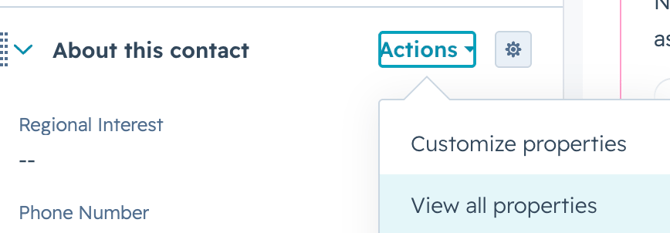
- Filter for 'original'
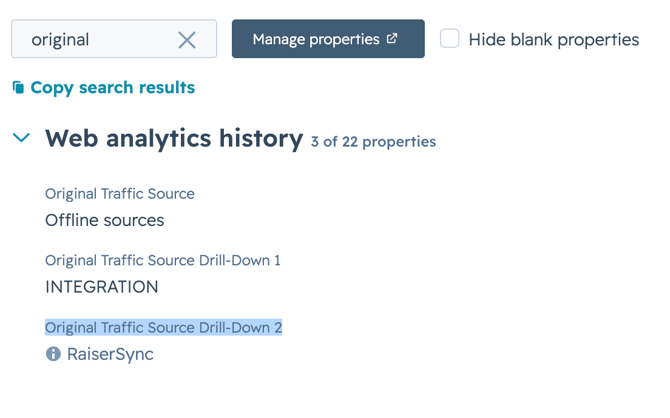
- Click the info button to verify the internal propery
- Save filters
- After your Segment is set up, edit the columns showing so you see all the fields within the RaiserSync field group.
- This Segment allows you and your team to have a quick way to see records that were created by the integration. They may have also been updated since they were created, but the goal of this list is to show only the records that were created originally by the integration
- If applicable, do the same for Companies.
- Filters:
- Add a custom Contact Segment that is Active named 'Created by RaiserSync'
-
- Add another custom Contact Segment (as well as Company if it applies) called 'Updated by RaiserSync'
- Filters
- Is NOT a member of the list 'Created by RaiserSync'
- Property 'Through RaiserSync' is set to 'True'
- After your Segment is set up, edit the columns showing so you see all the fields within the RaiserSync field group.
- This Segment allows you and your team to have a quick way to see records that were not created by the integration, but they have been updated by the integration since their record has existed in HubSpot (through an import, or other source)
- It also helps distinguish data syncing from other integrations in your account
- Filters
- RaiserSync syncs Gifts as Deals in HubSpot. We suggest also creating a Segment for the 'Deals' named 'RaiserSync Deals' or 'RaiserSync Gifts' if you prefer
- Filter – same as the Contacts Segment:
- 'Original Traffic Source' = Offline
- 'Original Traffic Source Drill-Down 2’ = 1795624
- This is the internal ID of the RaiserSync integration
- (Optional) You can verify this by going to a contact record created by the integration, under actions in the first card on the right side, click Actions and choose 'View all Properites
- Filter for 'original'
- Click the info button to verify the internal propery
- Save filters
- After your Segment is set up, edit the columns showing so you see all the Deal fields within the RaiserSync field group.
- This Segment allows you and your team to have a quick way to see the Deals synced by the integration. We strongly recommend conducting a thorough review of your current HubSpot setup.
- Filter – same as the Contacts Segment:
- Add another custom Contact Segment (as well as Company if it applies) called 'Updated by RaiserSync'
- Go through all workflows, emails, personalization tokens, and lists within your account.
- The introduction of new fields by our integration may necessitate updates or adjustments in these areas to fully leverage the enhanced capabilities and maintain the integrity of your marketing strategies.
- By taking the time to carefully assess and update these components, you'll ensure that your marketing operations run smoothly and efficiently, capitalizing on the powerful synergy between our app and HubSpot's robust platform.
- If you have Marketing Contacts, you will need to go to Settings > Integrations > Marketing Contacts
- Leave Marketing Contacts toggled off if you want the contacts coming in as ‘Non-Marketing Contacts’ or toggle it on if you’d like them to be contacts you can market to.
- If you leave the toggle off, make sure you have a standard operating procedure for marketing specific contacts to be marketing contacts per your marketing communication strategy.
Customizing Raiser's Edge > HubSpot Integration
We can do any customization of RaiserSync that the platforms' APIs will allow. Contact us for more information.
Need Help Leveraging The Data Sync?
Navigating the intricacies of integrating new features into your existing HubSpot ecosystem can be complex, requiring a deep understanding of both your strategic objectives and the technical landscape.
If you're looking for expert assistance to ensure a smooth and efficient integration process, our team is here to help. We can help take the guesswork out of the equation, ensuring your workflows, emails, personalization strategies, and lists are perfectly aligned with the new capabilities our app brings.
Don't hesitate to reach out and let us guide you through every step of the post-integration strategy. Discover how our assistance package can transform your integration experience by contacting us today.
RaiserSync Documentation
How RaiserSync Works — Technical Overview
Architecture & security
- RaiserSync runs as a managed integration service. Data passes through a dedicated integration server, encrypted in transit, and is not stored beyond what's required to process each sync event.
- Connection to HubSpot is established through a HubSpot public app using OAuth 2.0; access tokens are managed by the integration and refreshed automatically. The Raiser's Edge connection uses Blackbaud's SKY API over OAuth 2.0 in the same manner.
What triggers a sync
- Near real-time (event-driven): gifts and constituent changes in Raiser's Edge are delivered to RaiserSync as webhooks the moment they occur, queued per organization, and processed within minutes — not on an overnight batch.
- Scheduled (every 3 hours): HubSpot marketing and engagement data is written into Raiser's Edge on a 3-hour cycle.
- Each organization's events are processed in an isolated, rate-limited queue, so one organization's volume never blocks another's, and the integration never locks users out of either system while it runs.
How records are matched (identity resolution)
RaiserSync resolves identity in a defined order, not by guesswork:
- Primary key — Raiser's Edge constituent (system) ID. Every contact the integration creates in HubSpot carries its Raiser's Edge constituent ID. On each sync, the integration looks the contact up by that ID first. This is an exact, immutable match and is the reason the integration does not create duplicates for records it has already synced.
- Fallback — email. If no contact is found by constituent ID, the integration searches by email address before deciding whether to create or update.
- Resulting action:
- Match found (by ID or email) → the existing HubSpot contact is updated with the new data.
- No match found → a new HubSpot contact is created (on gift events, and — on Plus — when a new constituent is added in Raiser's Edge).
- Email present but rejected by HubSpot as malformed → the contact is still created/updated, and the original address is preserved in a dedicated "unformatted email" property so no data is lost.
Gift and deal handling
- Each Raiser's Edge gift becomes a HubSpot Deal, placed in a dedicated Donation pipeline.
- The contact is created or updated first, so the deal can be associated with the correct contact on creation.
- Deals are named on a consistent convention — Constituent Name – Gift Date – Sequence (the sequence is the donor's gift count, e.g. 0001, 0002) — and matched on the Raiser's Edge gift ID, so re-syncing a gift updates its existing deal rather than creating a duplicate.
Field-Level Reference
For a complete, field-by-field breakdown of everything that syncs — every HubSpot property, its Raiser's Edge source, the sync direction, and how each value is handled — see the RaiserSync Reference & Planning Guide. You will be prompted to create your own copy.
The guide includes separate tabs for the Standard and Plus field sets, a summary of what triggers a sync in each direction, and example workflows you can build on top of the synced data. We'd recommend saving your own copy so you can annotate it for your team's configuration.
Error Handling & Transparency
RaiserSync gives you full, real-time visibility into every sync event through the Organization Dashboard. Rather than running as a black box, the integration surfaces exactly what it processed, what succeeded, and what didn't — so issues are visible and traceable, not silent.
At-a-glance health. The dashboard summarizes total events, successes, items pending, and failures, along with an overall success rate and live status of both the Raiser's Edge and HubSpot sync cycles (last run time and next run).
Event-level detail. Every individual sync event is logged with its status, the record involved, the type of object (contact, deal, etc.), the number of retry attempts, and timestamps for when it was created and last updated. Events can be filtered by status and date range so you can quickly isolate anything that needs attention.
Clear status categories. Each event carries a status that tells you whether action is needed:
- Successful — the event synced as expected.
- Pending — the event is queued or in progress.
- Skipped — the integration intentionally did not act on this event (for example, a record outside the scope of what RaiserSync manages). Skips are a normal, healthy part of operation and generally require no action.
- Failed — the event could not be completed. Failed events are automatically retried, and the dashboard shows the retry count.
Actionable error messages. For any event with an issue, the dashboard provides a detailed error view that includes an error code, a plain-language explanation of what happened, and — where relevant — guidance on how to resolve it. This makes it possible to understand and act on an issue without needing to read raw system logs.
Automatic retries. Transient problems (such as a temporary connection interruption) are retried automatically. Errors that require a human decision — for example, a record that needs attention in Raiser's Edge or HubSpot — are surfaced clearly so the right person can resolve them.